We already had a first shot at Managed Identities for Plugins 2 years ago, but since then, the feature has left the preview stage and is now generally available. This also brought a new version of the subject identifier to be used for new managed identity records in Dynamics. And I already teased in the previous article that we will need a proper ALM to use this feature in a production environment. So today we kick off a gain with a “Getting Started” to then expand with automation for developers and CI/CD pipelines in the next articles.
There is also an official Microsoft documentation, but I will diverge from that a bit because I’m already thinking about my next steps with multiple developers and pipelines.
The Code
Because this is a new project, we want to use plugin packages of course!
pac plugin init -o ManagedIdentitySample
For the code I really only ran a sample that lets me debug this well, so the Plugin1.cs got some additions, the 3 highlighted lines are what is important for your own adventure. The rest of my code will make sure that the returned JWT will be persisted to logs and the description field of the Account I am triggering on to easily copy it out and for example analyze it further with a tool like jwt.ms.
protected override void ExecuteDataversePlugin(ILocalPluginContext localPluginContext)
{
    if (localPluginContext == null)
    {
        throw new ArgumentNullException(nameof(localPluginContext));
    }

    var context = localPluginContext.PluginExecutionContext;

    var managedIdentity = localPluginContext.ServiceProvider.Get<IManagedIdentityService>();

    localPluginContext.Trace($"Acquiring Token");

    var scope = new List<string> { "https://vault.azure.net/.default" };
    var token = managedIdentity.AcquireToken(scope);

#if DEBUG
    localPluginContext.Trace($"Token: {token}");
#endif

    var updateAccount = new Entity("account")
    {
        Id = context.PrimaryEntityId,
        ["description"] = token
    };
    localPluginContext.PluginUserService.Update(updateAccount);
}
We retrieve the IManagedIdentityService, then build a scope and then request a token for this scope. If everything is correct, AcquireToken will return a JWT, a JSON Web Token, that can be used for authentication/authorization. Of course this only works for services that accept this kind of auth, for example all Azure services. Azure Key Vault is chosen here on purpose because it can securely store other credentials like username and password for services that do not accept JWT. For these, the Managed Identity in combination with the Key Vault still provide a bootstrap for secure communication.
Generating the Certificate
For Managed Identity to work, our plugin package needs to be signed. And it’s not enough to use the Signing Key we are used to from Plugin Assemblies deployed to Dataverse, no the NuGet package needs to be signed after packaging. For that matter we will need a Certificate with a private key.
I’ve put a script below that will automate this mostly, please notice that you should
- replace the variables at the top of the file with your own ones
- choose a good CommonName as we will need this later for retrieval, it should be unique on everyones computer, so simply your companies name is not enough. But it should also be the same for everyone and the build server, so maybe something like the Assembly name which may already have your Company in there like a “Microsoft.CRM.Plugins.ERPSynchronization” might work well
- receive a warning when the script tries to trust the generated certificate, this is optional, but if you don’t you will receive annoying warnings every time you save about the certificate not being trusted.
- save the “App Registration Values” that are printed in the end, we will need it later.
Important: The official docs use the Extension ‘2.5.29.37={text}1.3.6.1.5.5.7.3.4’, which in my testing was never deemed valid for signing a package by the NuGet command line tool, instead ‘2.5.29.37={text}1.3.6.1.5.5.7.3.3’ (.3 in the end) is used as the valid extension for code signing.
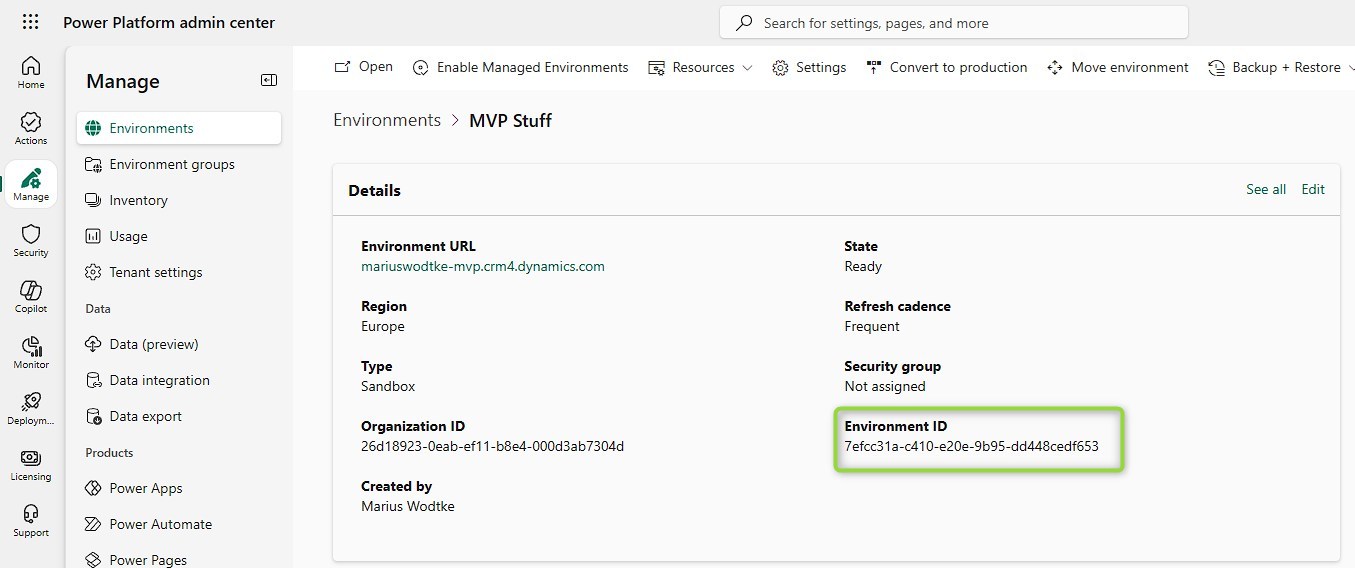
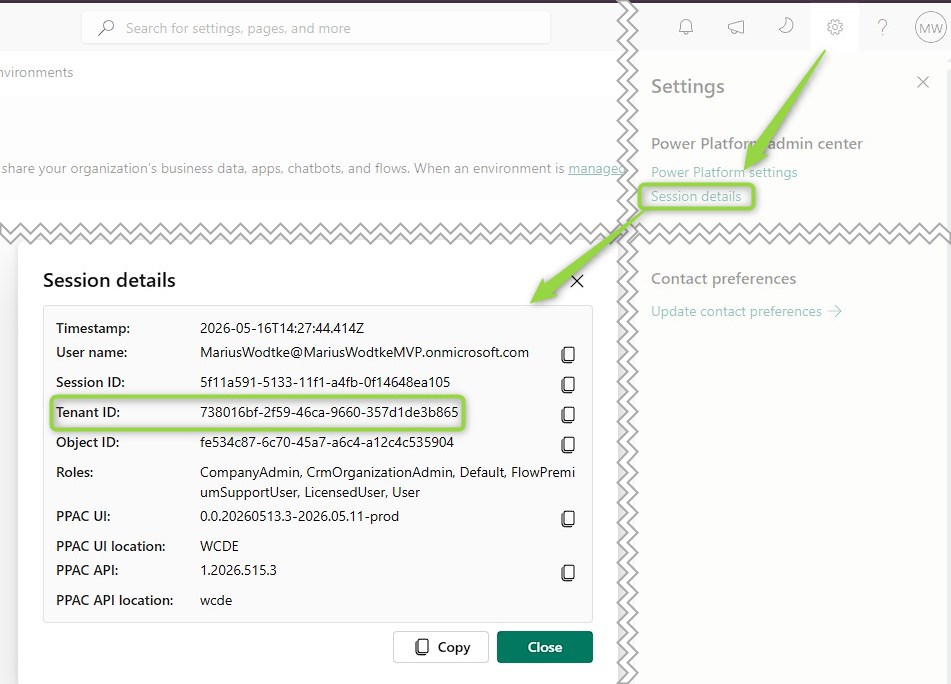
If you are unsure about the environmentId, you can find it in PPAC on your environment. tenantId is found in the Session Details under the setting cog icon.
$email = 'MariusWodtke@MariusWodtkeMVP.onmicrosoft.com'
$commonName = 'MariusWodtkeMVP'
$tenantId = '738016bf-2f59-46ca-9660-357d1de3b865'
$environmentId = '7efcc31a-c410-e20e-9b95-dd448cedf653'

# Generate Cert
$params = @{
    Type = 'Custom'
    Subject = "E=$email,CN=$commonName"
    TextExtension = @(
        '2.5.29.37={text}1.3.6.1.5.5.7.3.3',
        "2.5.29.17={text}email=$email" )
    KeyAlgorithm = 'RSA'
    KeyLength = 2048
    SmimeCapabilities = $true
    CertStoreLocation = 'Cert:\CurrentUser\My'
}
$cert = New-SelfSignedCertificate @params
Write-Host "New Certificate generated"

# (Optional) Add to trusted certs to suppress warnings while signing
# This will open a dialog if you are sure you want to trust it
$store = New-Object System.Security.Cryptography.X509Certificates.X509Store("Root", "CurrentUser")
$store.Open("ReadWrite")
$store.Add($cert)
$store.Close()
Write-Host "Certificate installed to Trusted Root store"

# Extract hash of cert for the Subject we need for the Federated Credential
$cerFilePath = "$PSScriptRoot\$commonName.cer"
Export-Certificate -Cert $cert -FilePath $cerFilePath
Write-Host "Certificate exported to: $cerFilePath"

$certUtilOutput = CertUtil -hashfile $cerFilePath SHA256
$hash = ($certUtilOutput | Select-Object -Index 1).Trim()
Write-Host "`nSHA256 Hash: $hash"

# Encode the TenantId for the Subject we need for the Federated Credential
$tenantGuid = [System.Guid]::Parse($tenantId)
$tenantHex = $tenantGuid.ToByteArray()
$tenantBase64 = [System.Convert]::ToBase64String($tenantHex)
$encodedTenantId = $tenantBase64.Replace('+', '-').Replace('/', '_').TrimEnd('=')
Write-Host "`nEncoded Tenant ID: $encodedTenantId"

# Print out the final subject
$subject = "/eid1/c/pub/t/$encodedTenantId/a/qzXoWDkuqUa3l6zM5mM0Rw/n/plugin/e/$environmentId/h/$hash"
$issuer = "https://login.microsoftonline.com/$tenantId/v2.0"
Write-Host "`nApp Registration Values:"
Write-Host "`Issuer:"
Write-Host $issuer
Write-Host "`nSubject Value:"
Write-Host $subject
Write-Host "`nName:"
Write-Host $email
Here is a sample output
PS C:\Repos\Kunter-Bunt\...\ManagedIdentitySample> .\GenerateCert.ps1
New Certificate generated
Certificate installed to Trusted Root store


    Directory: C:\Repos\Kunter-Bunt\...\ManagedIdentitySample


Mode                 LastWriteTime         Length Name
----                 -------------         ------ ----
-a----         5/13/2026     20:54           1110 MariusWodtkeMVP.cer
Certificate exported to: C:\Repos\Kunter-Bunt\...\ManagedIdentitySample\MariusWodtkeMVP.cer

SHA256 Hash: b7d2145e1e8f76faa41561e47b70eb3bc7ca5b2f337ded7480c21a343c8ac6c3

Encoded Tenant ID: vxaAc1kvykaWYDV9HeO4ZQ

App Registration Values:
Issuer:
https://login.microsoftonline.com/738016bf-2f59-46ca-9660-357d1de3b865/v2.0

Subject Value:
/eid1/c/pub/t/vxaAc1kvykaWYDV9HeO4ZQ/a/qzXoWDkuqUa3l6zM5mM0Rw/n/plugin/e/7efcc31a-c410-e20e-9b95-dd448cedf653/h/b7d2145e1e8f76faa41561e47b70eb3bc7ca5b2f337ded7480c21a343c8ac6c3

Name:
MariusWodtke@MariusWodtkeMVP.onmicrosoft.com
Signing the Package
Now we start do deviate from the official documentation. They use an exported .pfx file with a password to sign their packages, but I want to automate signing as a post build step and don’t want to a password in the project file nor do I want to rely on unprotected .pfx files. Therefore we will search the Certificate by CN (CommonName) from the Certificate Store of Windows. Because it’s already loaded to the store, no password is required. And here you see the reason why I wanted to have a unique but common among developer and build machines name for CN as -CertificateSubjectName 'WhateverYourCNIs' will be hardcoded.
For now I will use the nuget sign command manually, but the plan is to deliver an automation in another article.
PS C:\Repos\Kunter-Bunt\...\ManagedIdentitySample\bin\Debug>
>> nuget sign .\ManagedIdentitySample.1.0.0.nupkg -CertificateStoreLocation CurrentUser -CertificateStoreName My -CertificateSubjectName 'MariusWodtkeMVP'
WARNING: NU3002: The '-Timestamper' option was not provided. The signed package will not be timestamped. To learn more about this option, please visit https://docs.nuget.org/docs/reference/command-line-reference


Signing package(s) with certificate:
  Subject Name: E=MariusWodtke@MariusWodtkeMVP.onmicrosoft.com, CN=MariusWodtkeMVP
  SHA1 hash: 313D5BD2A5E36DB2B7211DC1B9D99C9836825636
  SHA256 hash: B7D2145E1E8F76FAA41561E47B70EB3BC7CA5B2F337DED7480C21A343C8AC6C3
  Issued by: E=MariusWodtke@MariusWodtkeMVP.onmicrosoft.com, CN=MariusWodtkeMVP
  Valid from: 5/13/2026 20:44:28 to 5/13/2027 21:04:28

Package(s) signed successfully.
Now we can register the package in Dataverse and for testing I also registered an asynchronous step on updating telephone1 of Account.
Creating the App Registration
Now we have a signed package in Dataverse and code inside that tries to authenticate with a Managed Identity, but what identity? We will create an AppRegistration here, no special setting.
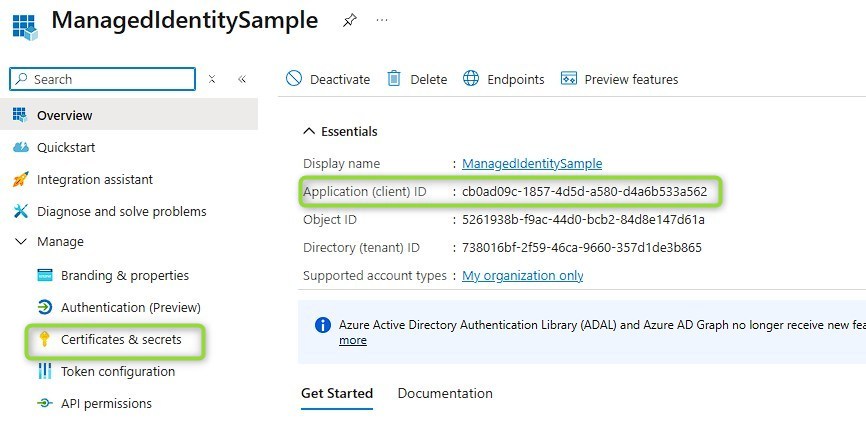
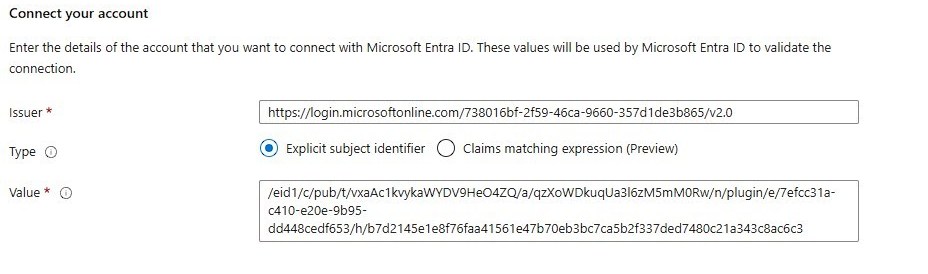
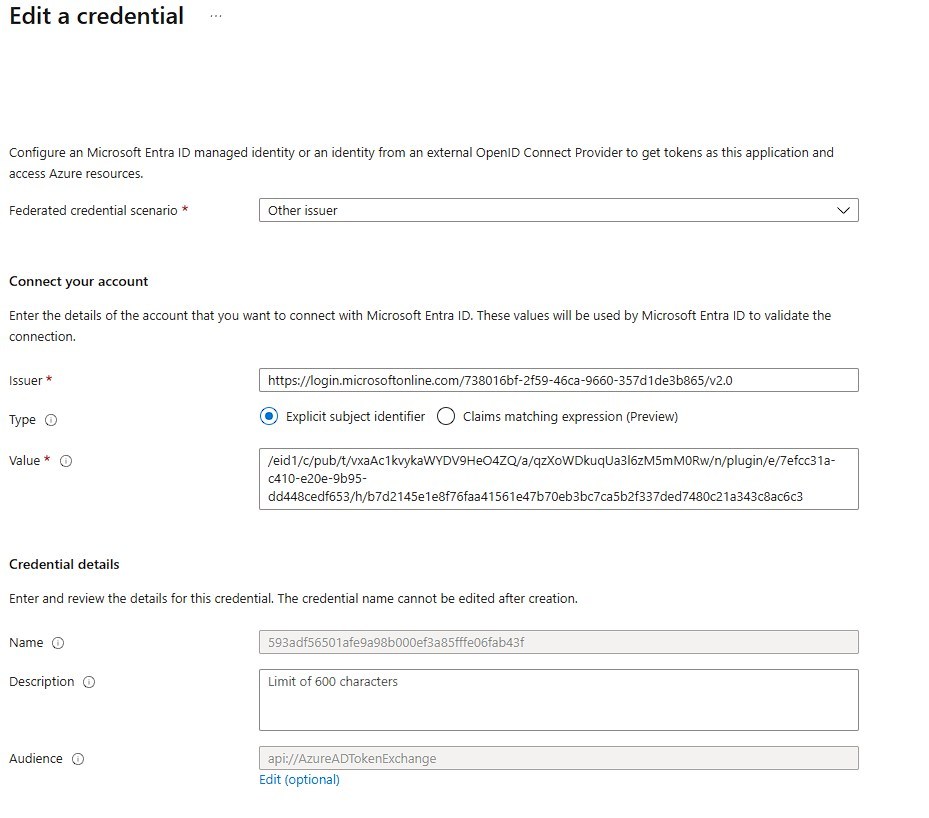
Then we create a Federated Credential under Certificates & Secrets. Here you will need the issuer and subject that you saved after executing the script to generate the secret. Subject Value is the Value needed here.
For name I still have the certificates thumbprint in the screenshot, however, developer name (I used email in the script) is a better choice here. It’s easier to associate entries with people when needing to invalidate a leaving member or needing to update your certificate after it reached its validity date.
Creating the Managed Identity
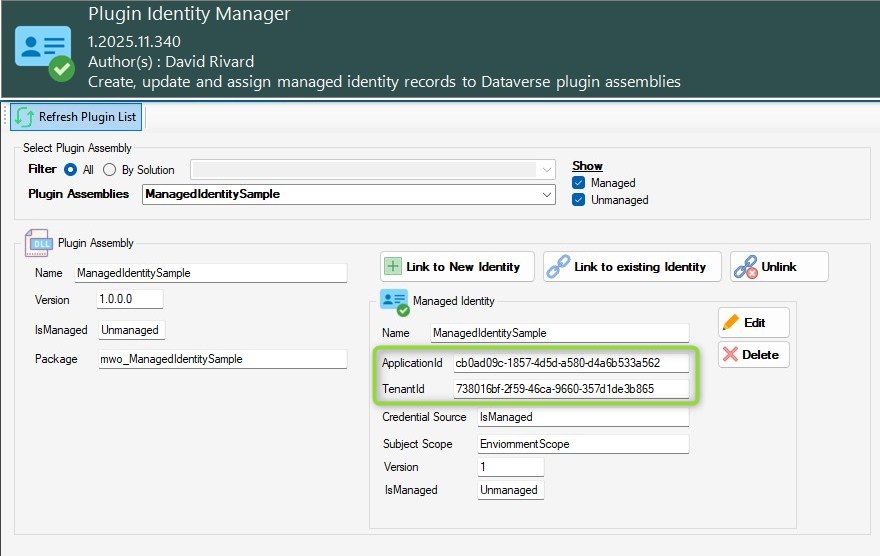
And finally we need to tell Dynamics what App Registration matches our signed Plugin Package. Fortunately David Rivard wrote an XrmToolbox tool for this matter. Really simple, select your Assembly, Link to a New Identity and use the TenantId and ApplicationId (marked that one for you in the screenshot of the AppRegistration overview).
The Result
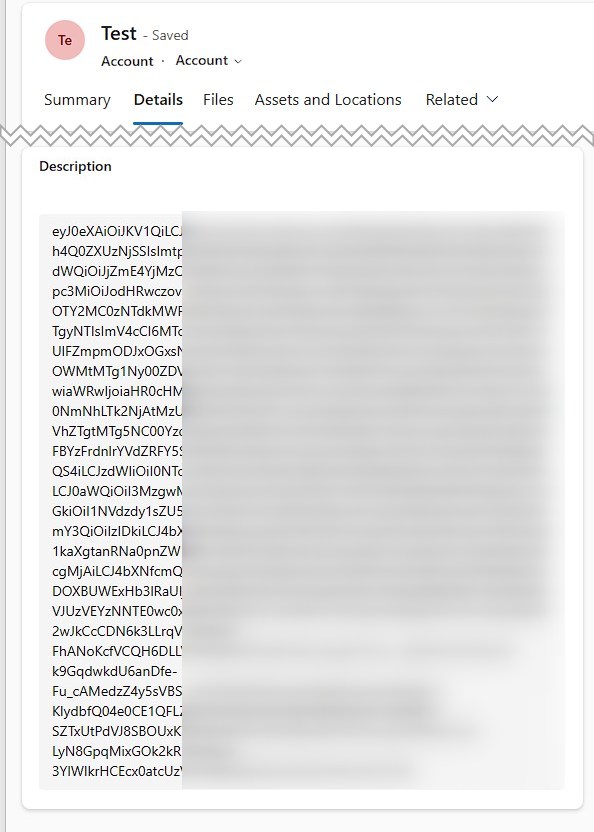
Now we have everything in place and the “If everything is correct” should be fulfilled now, so if I update my Accounts Main Phone, I can see the token in the Description field. Still, that is not a use case and you don’t want to hand out the tokens to anyone except the receiving application but it clearly shows the feature working.
Summary
Managed Identities provide the bootstrap for external authentication that we were waiting for a long time. These are the first steps towards Plugin Packages that will leverage this feature to enable communication without exposing credentials somewhere.
For this we generate a Certificate with the provided script. This Certificate is used for signing our Plugin Package before registering in Dataverse. Then we create an App Registration & Federated Credential with the values returned from the script. Finally, we associate the Assembly with the App Registration using a Managed Identity record in Dataverse. And now we can use the AcquireToken method of the IManagedIdentityService to obtain a JWT for a given service.
The solution presented here is functional, however, there are ALM parts still missing, check the series with upcoming articles on how to automate signing for development workflows and how a pipeline could work for deployment to get a production ready feature.