I’m not a big fan of AI for everything, but that’s a story of it’s own. Even the earliest versions of GPT already did a great job summarizing texts and thus having such a feature in Outlook to get the hang of long conversations that you didn’t follow until someone posted a question to you is a great thing.
MS thought so too and thus we now have the Copilot for Sales now. The obviously diverted all development efforts from the established App for Outlook and has the disadvantage that depending on your existing licensing it will cost extra.
But of course there is also additional value that might outweigh the cost quickly and especially if it is included in your existing licenses, why shouldn’t we prefer this over the App for Outlook?
To skill myself up in this new way of offering Dynamics connectivity to Sellers in Outlook I will explore this tool in this series and as always I will document my experience in here, hoping that you may find some information that the official docs were missing.
The first pitfall
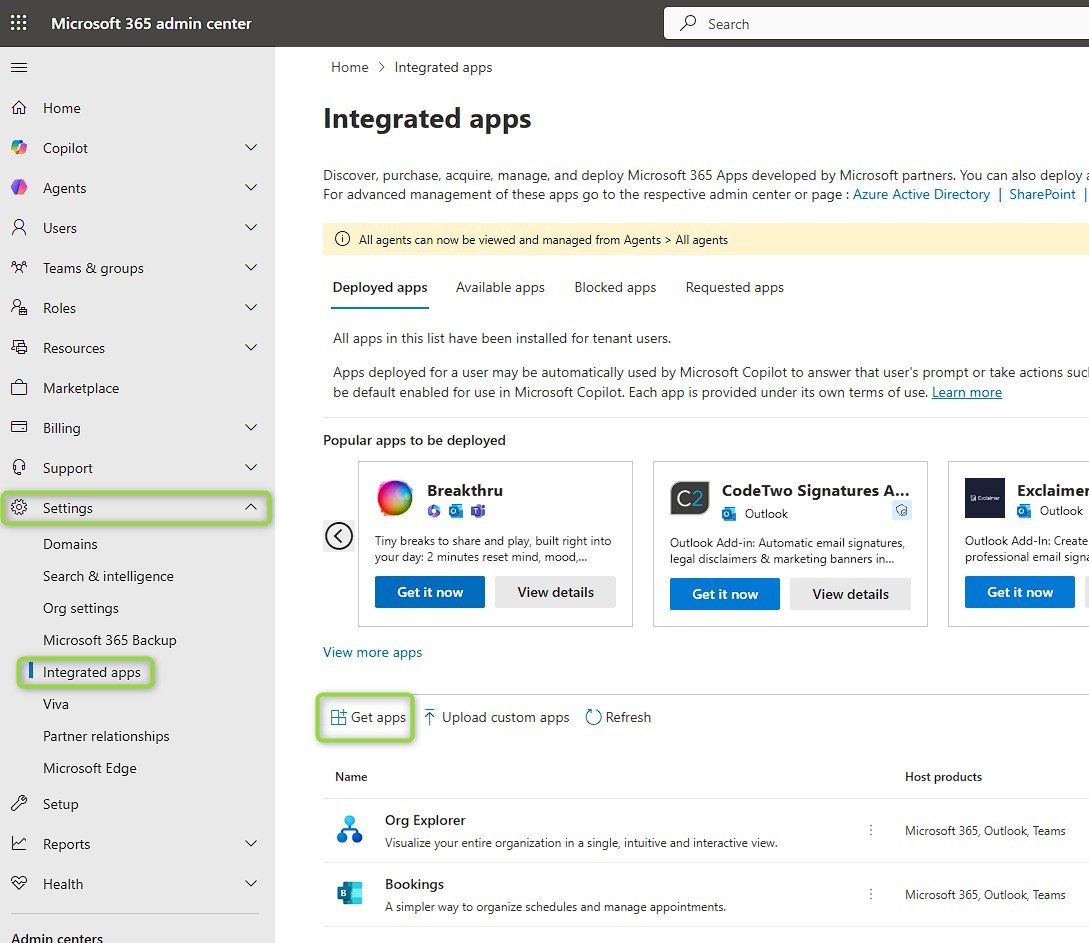
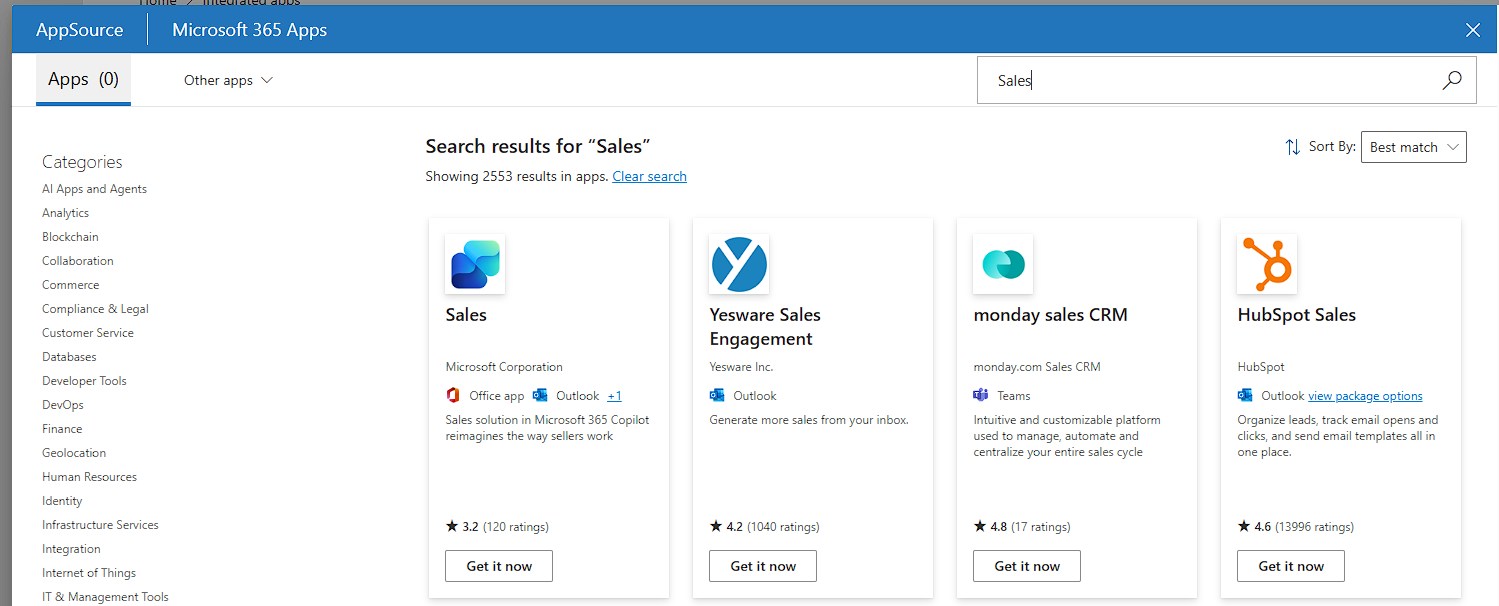
And here goes the first one: The docs say simply go to M365 admin center -> Settings -> Integrated apps -> Get apps. Now search for “Sales” and chose get it now. And this is correct! However, the big screenshot right below still has the search term “copilot for sales” and a matching “Copilot for Sales” card shown… Yeah, they’ve renamed it to Sales, so search for “Sales”! Here is also a direct link to the App.
Sadly, I did not screenshot the installation wizard, but the only setting I could make was for which users it is available to. This is also available in the app details afterwards should you want to change it. Note here that for larger organizations you would choose to restrict the app to a group to only deploy it to users with the respective license.
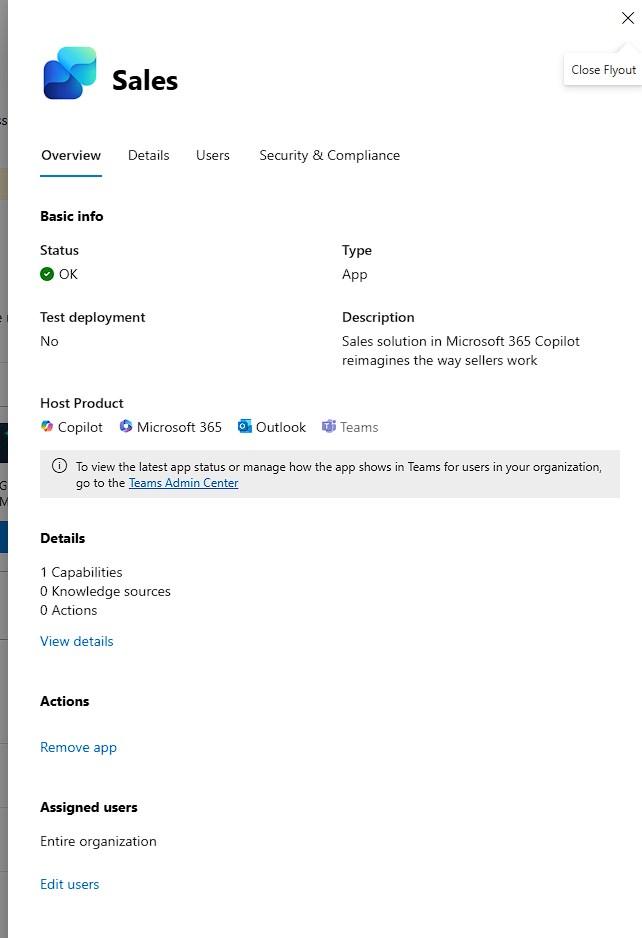
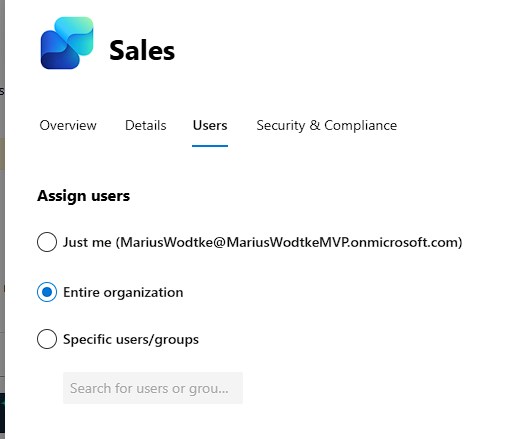
Also note the Teams integrated app needs extra deployment from the Teams admin center
Accessing the Admin Settings
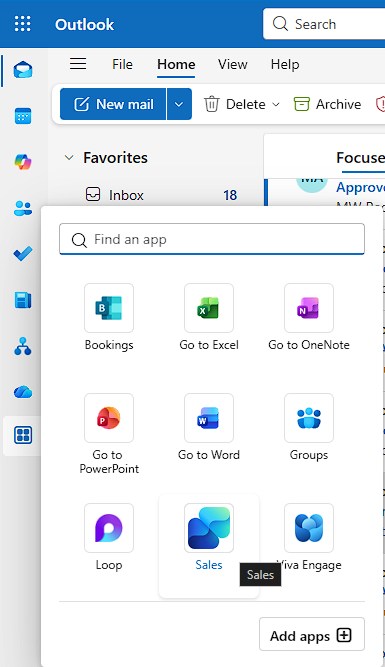
Let’s first check the app is available, this may take a couple minutes; or up to 48 hours per the documentation, but usually they set absurdly high numbers here to avoid support cases that resolve themselves an hour later.
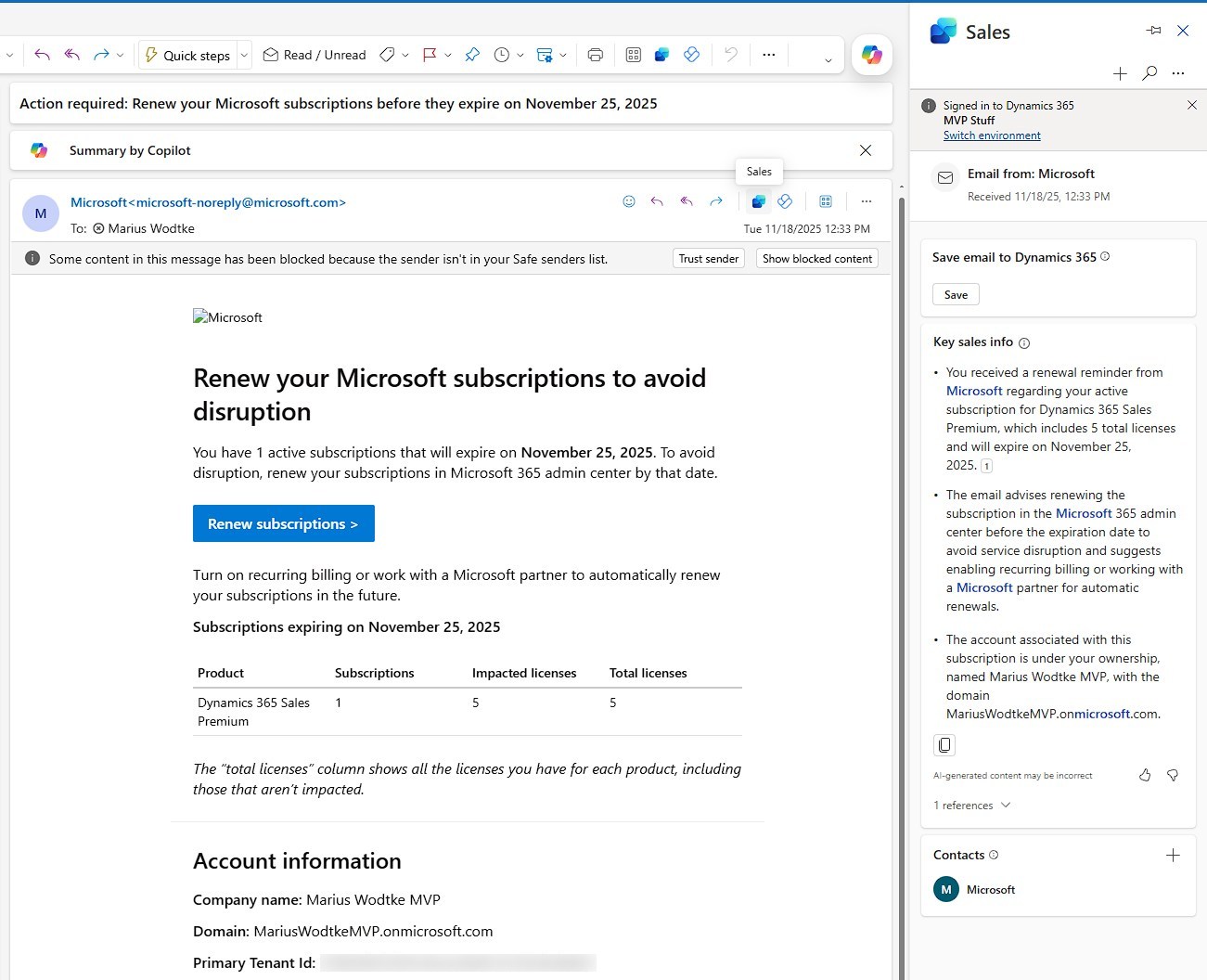
As we can see OOTB the button appears in an email, it connected me to an environment automatically on first open (likely my last used environment on this user) and offers to work with Contacts or saving the Email to Dynamics. So far so similar to the App for Outlook, but “Key sales info” provides a summary of the email as the copilot part. In this sample not really helpful, by the time I’ve read the summary I’ve also read the Email, plus, I need to double check because “ai-generated content may be incorrect”, but of course we all know those emails/email-chains that are much worse and the summary is a blessing.
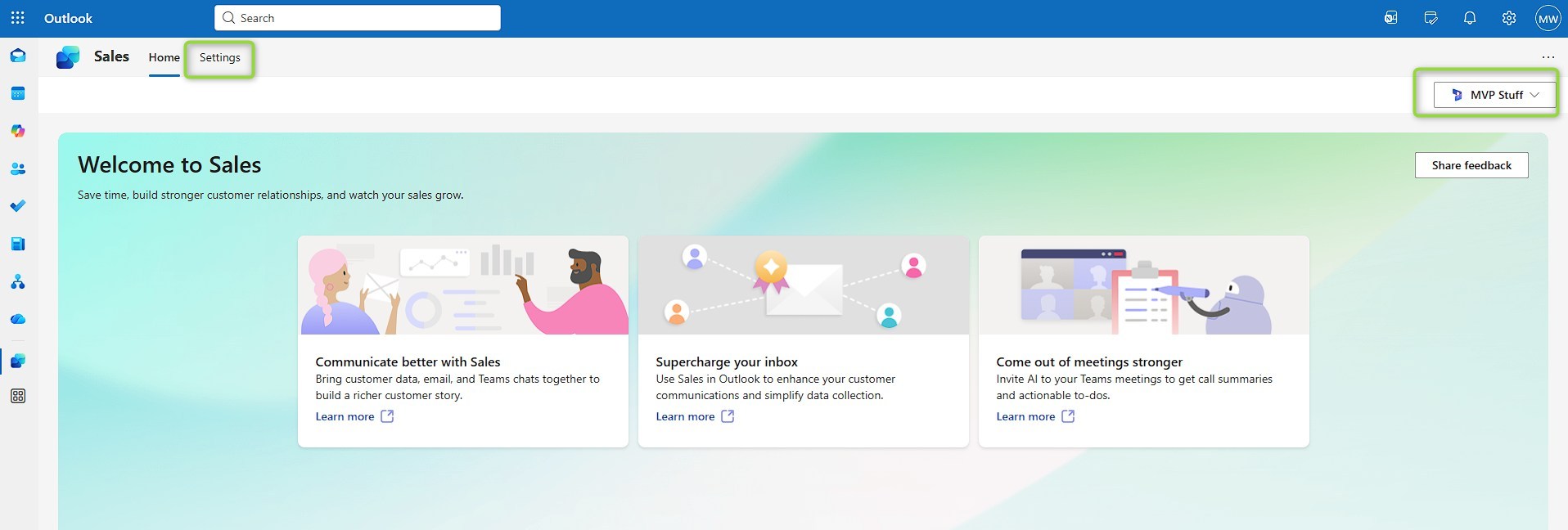
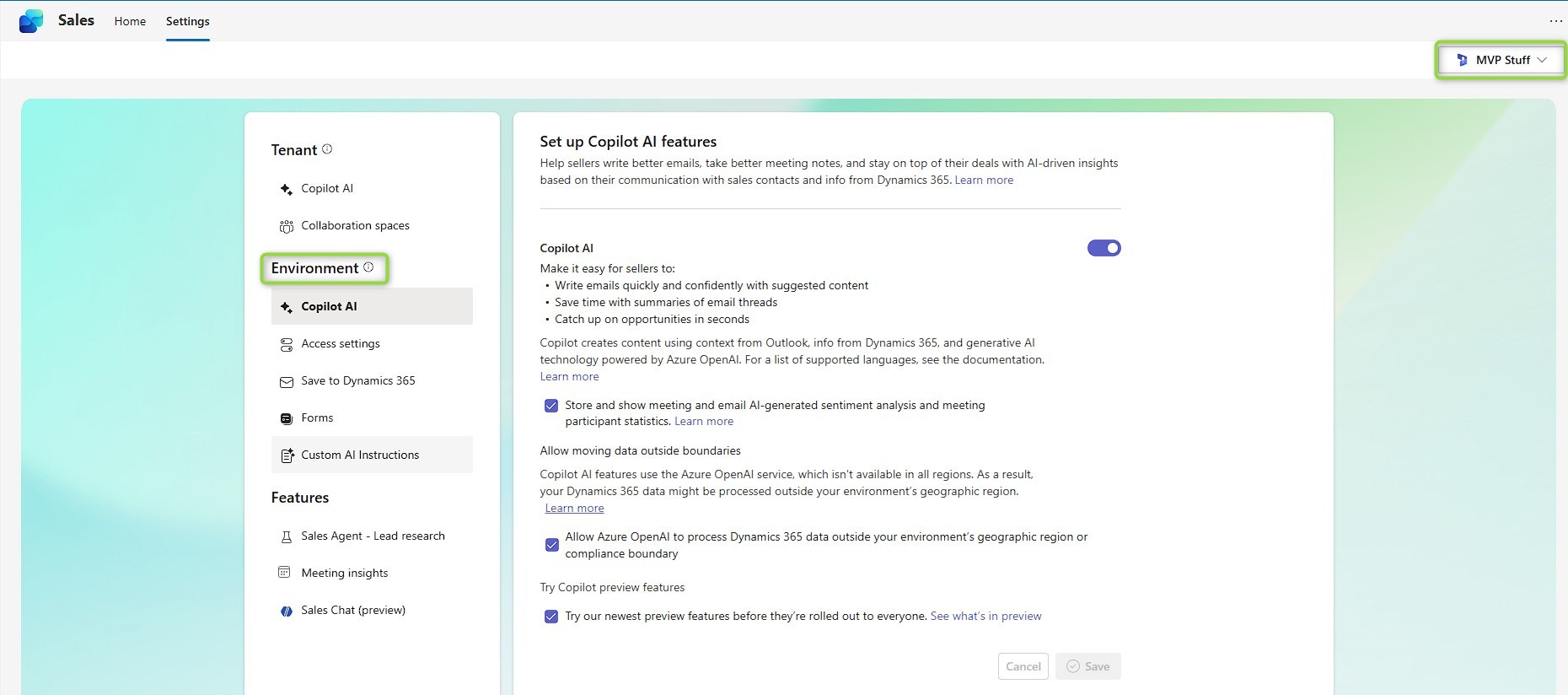
Most importantly for regular users, the full-screen app contains an environment switcher should the automatic association be incorrect and the user dismissed the initial info box. If you have the System Administrator Role in the environment you will also see the settings tab.
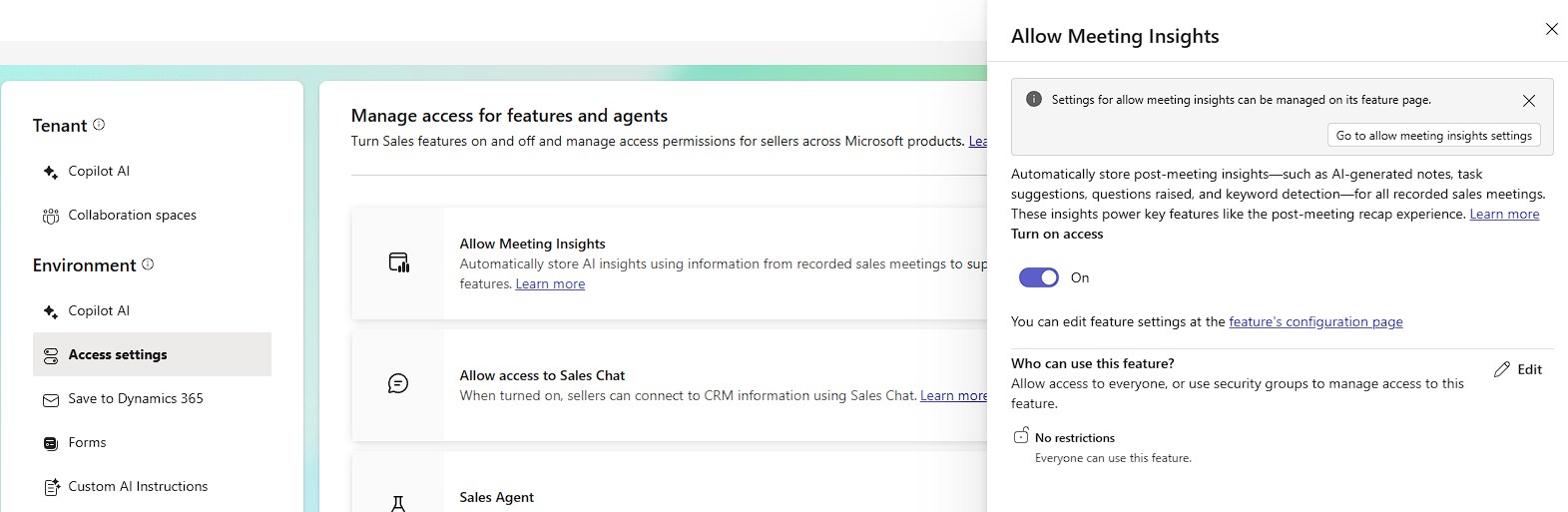
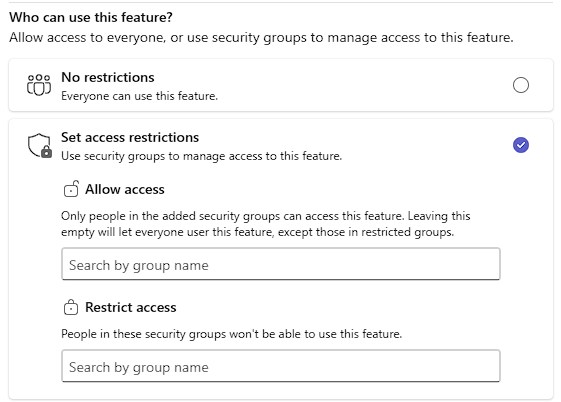
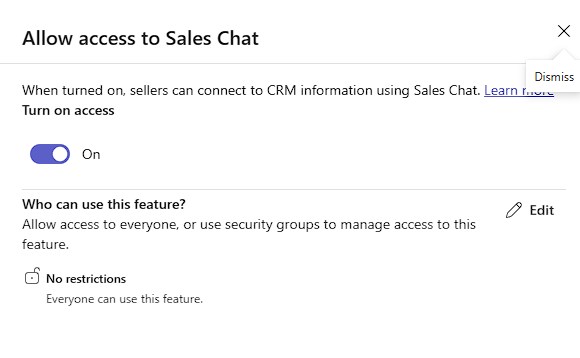
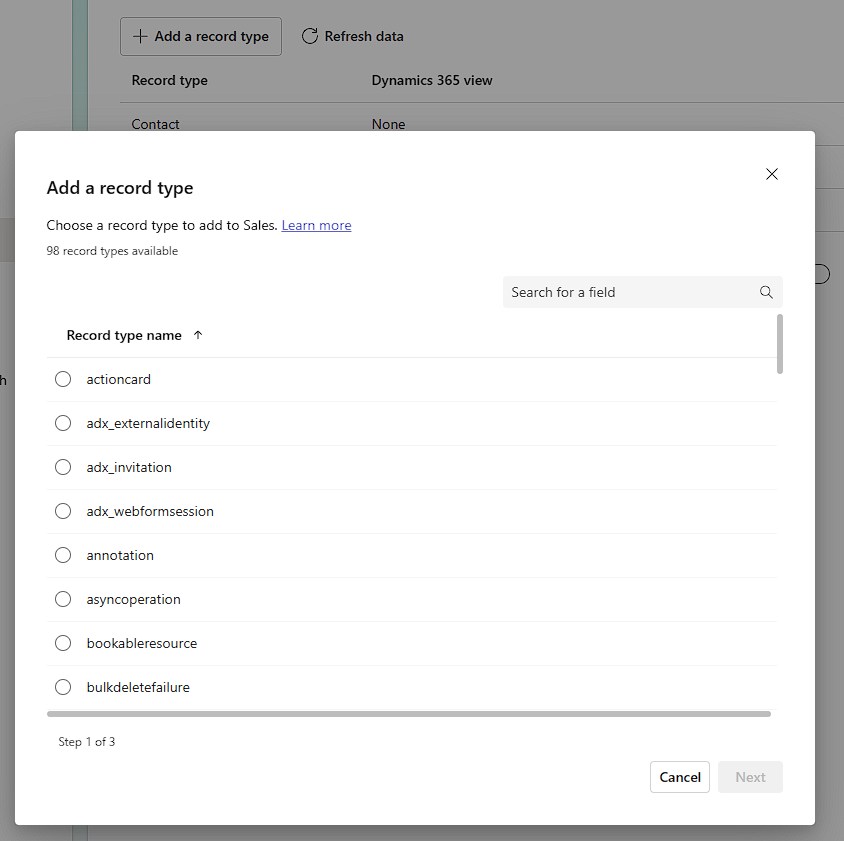
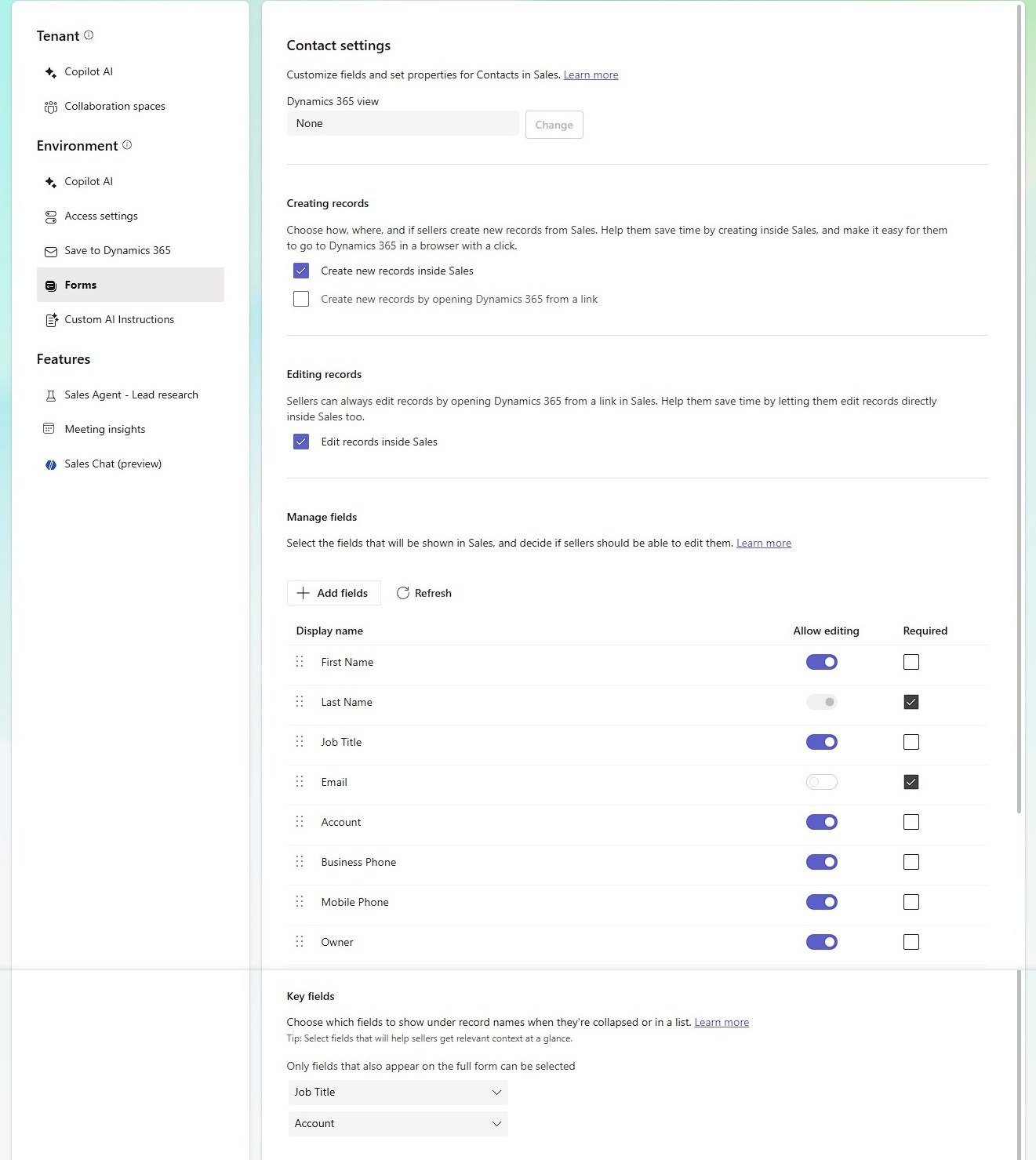
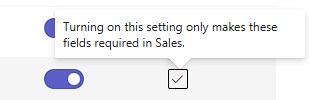
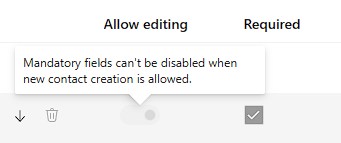
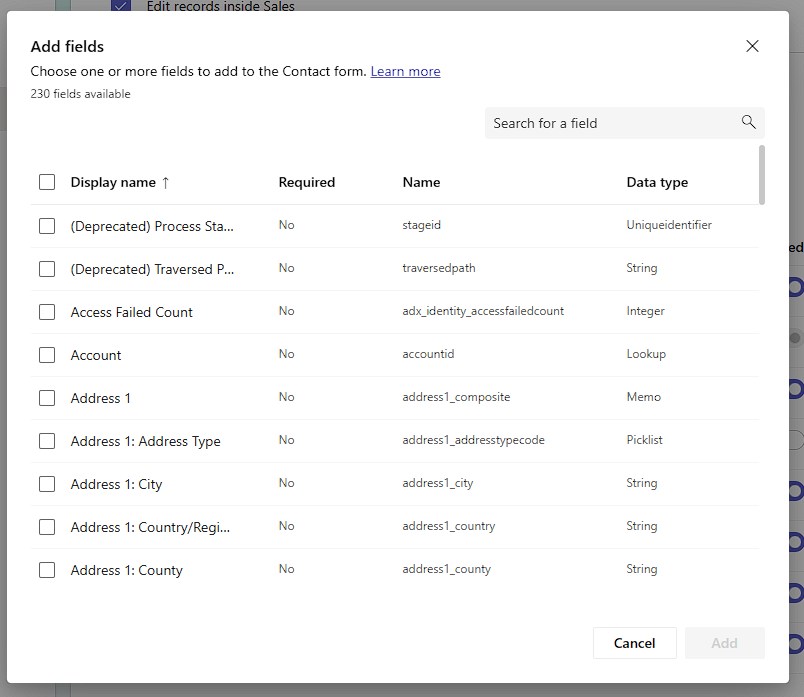
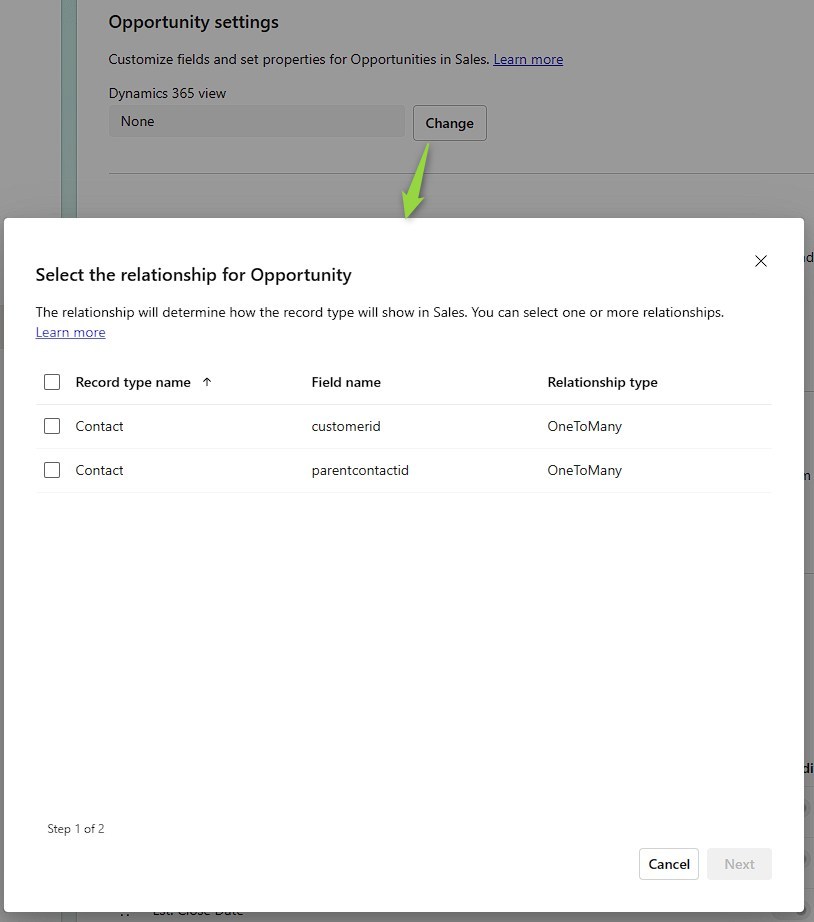
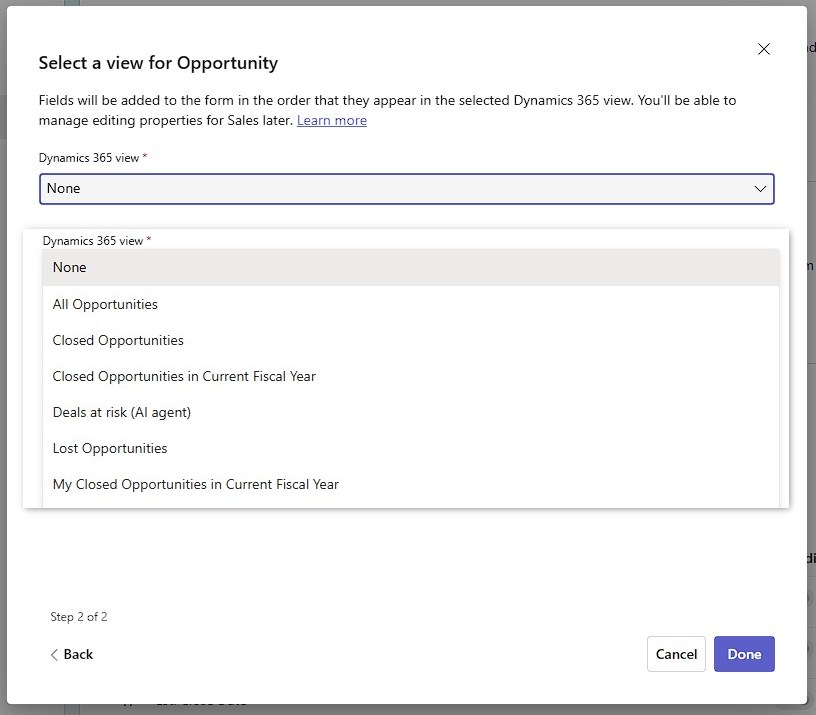
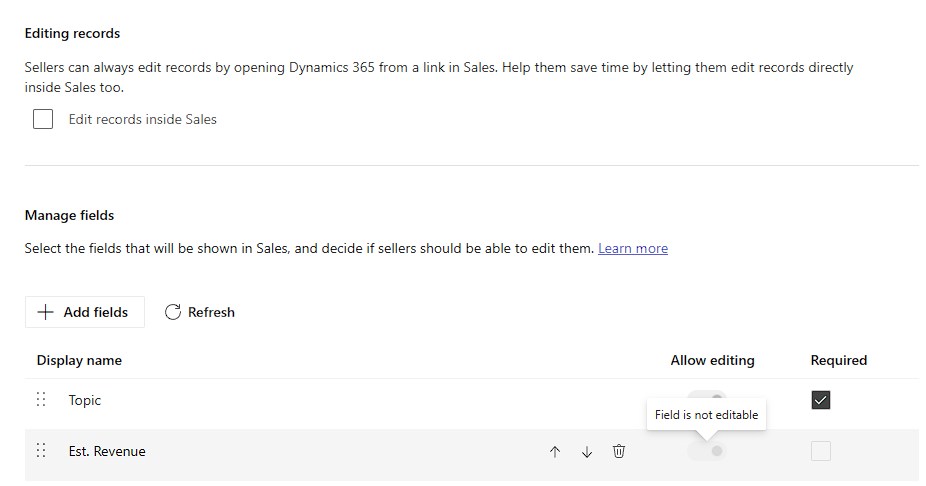
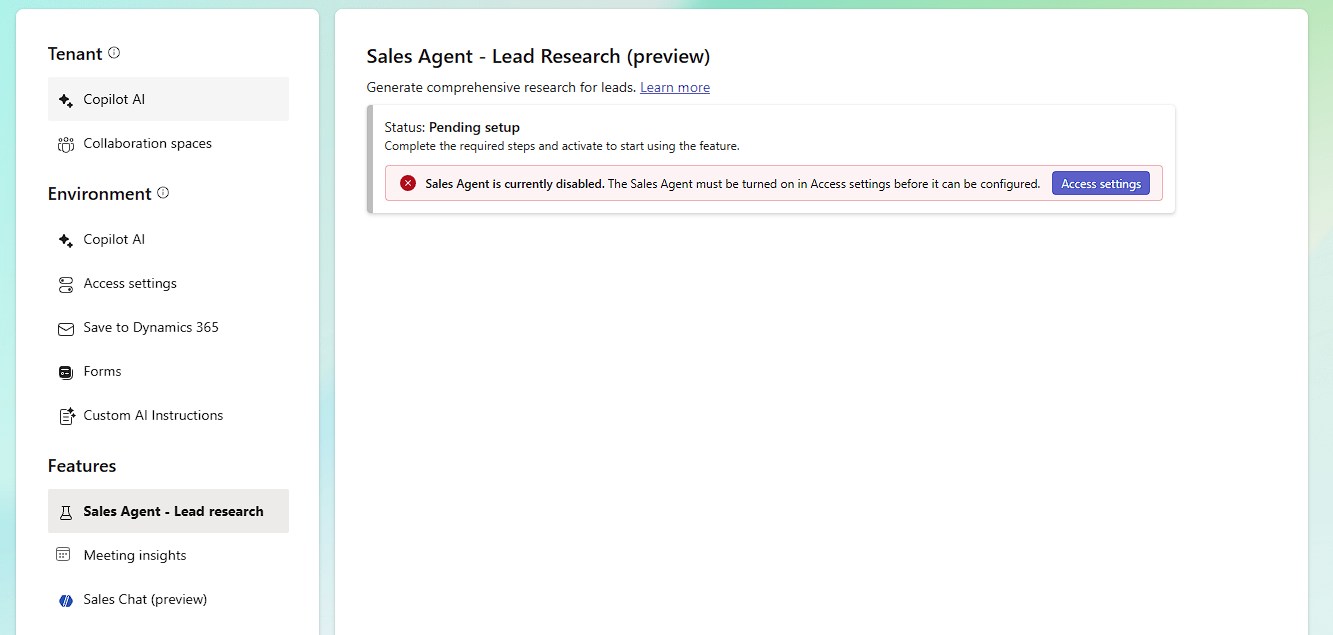
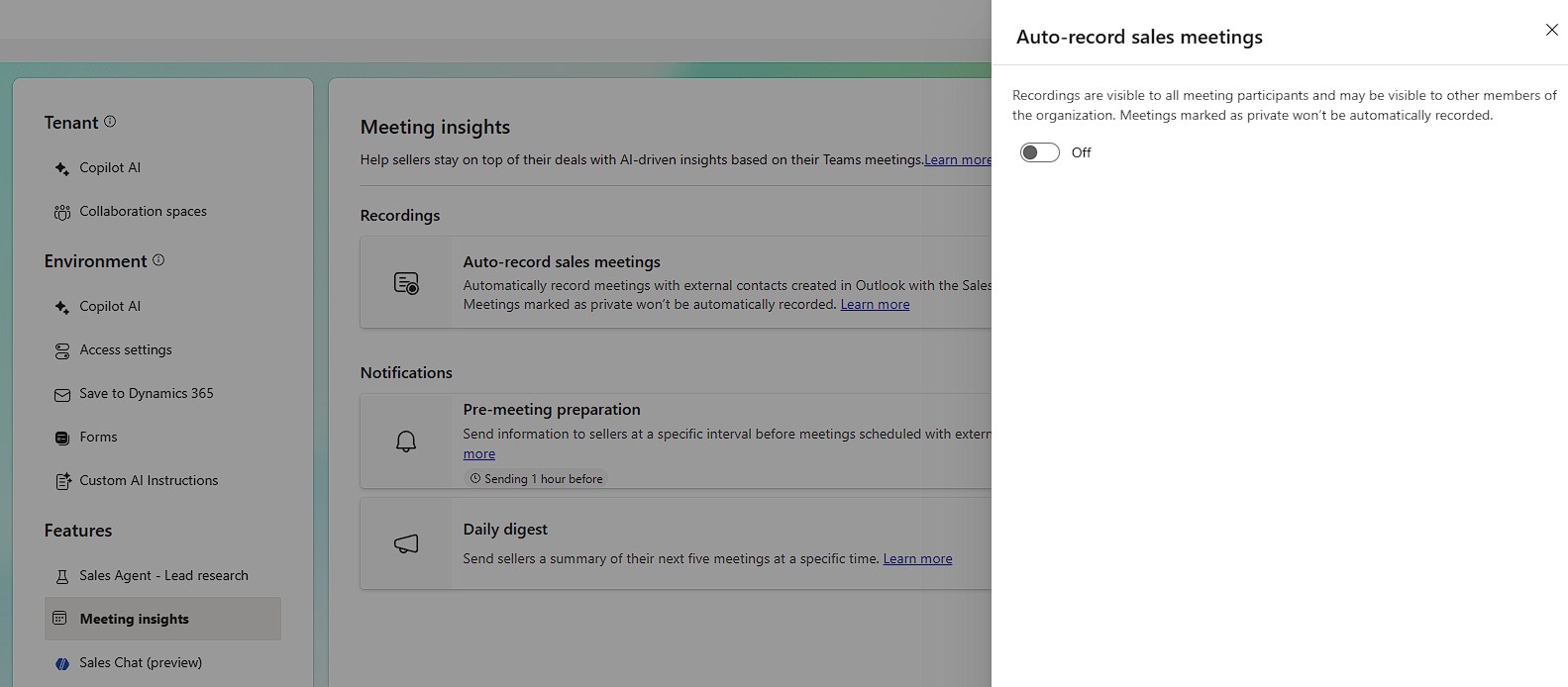
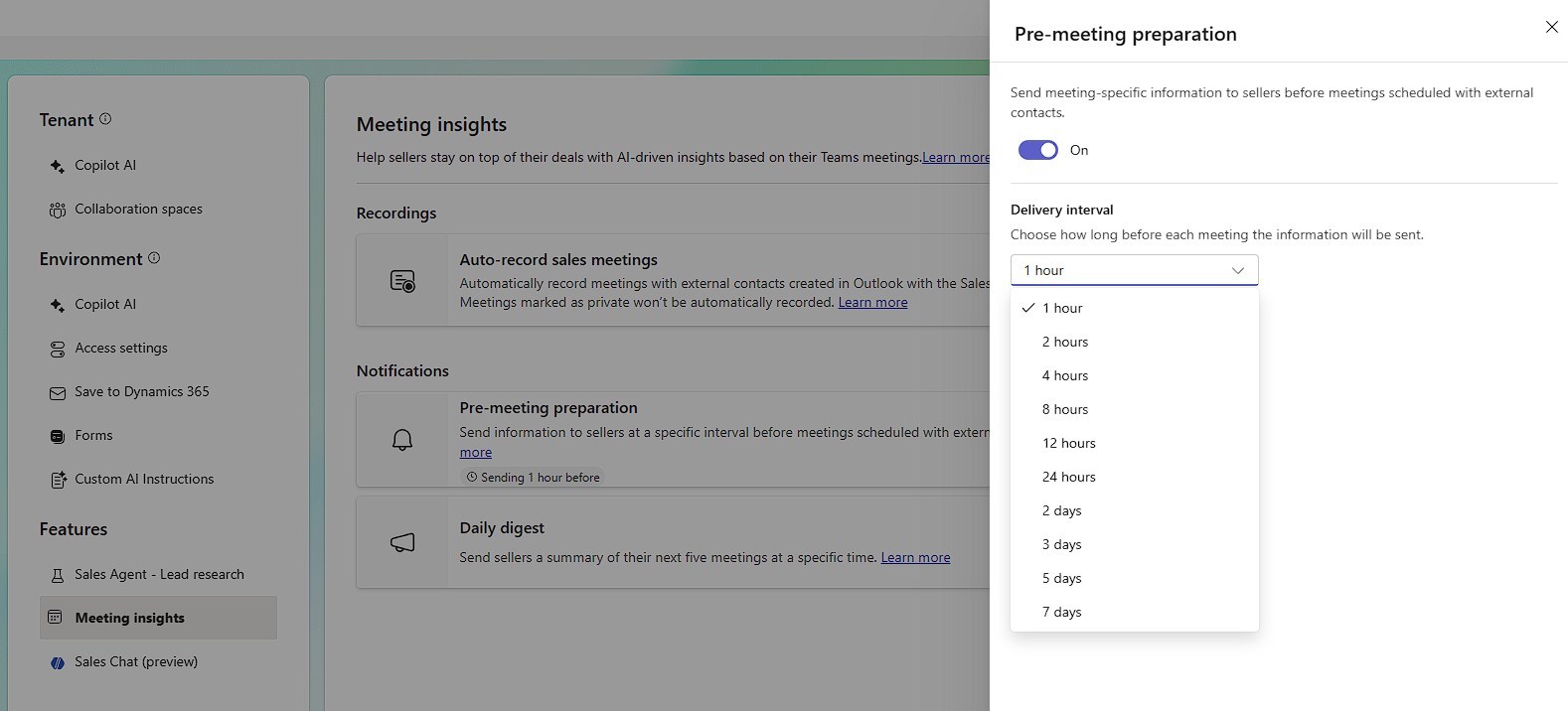
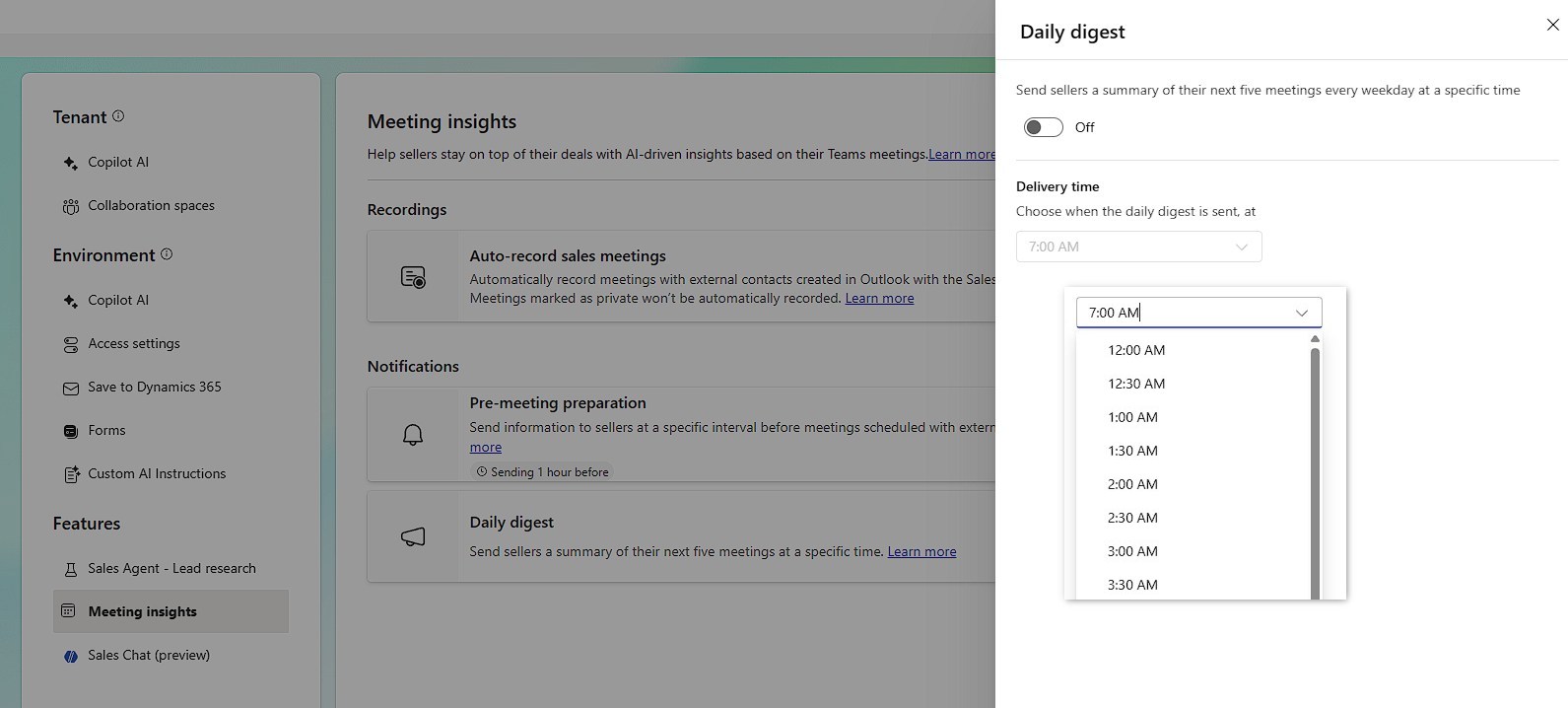
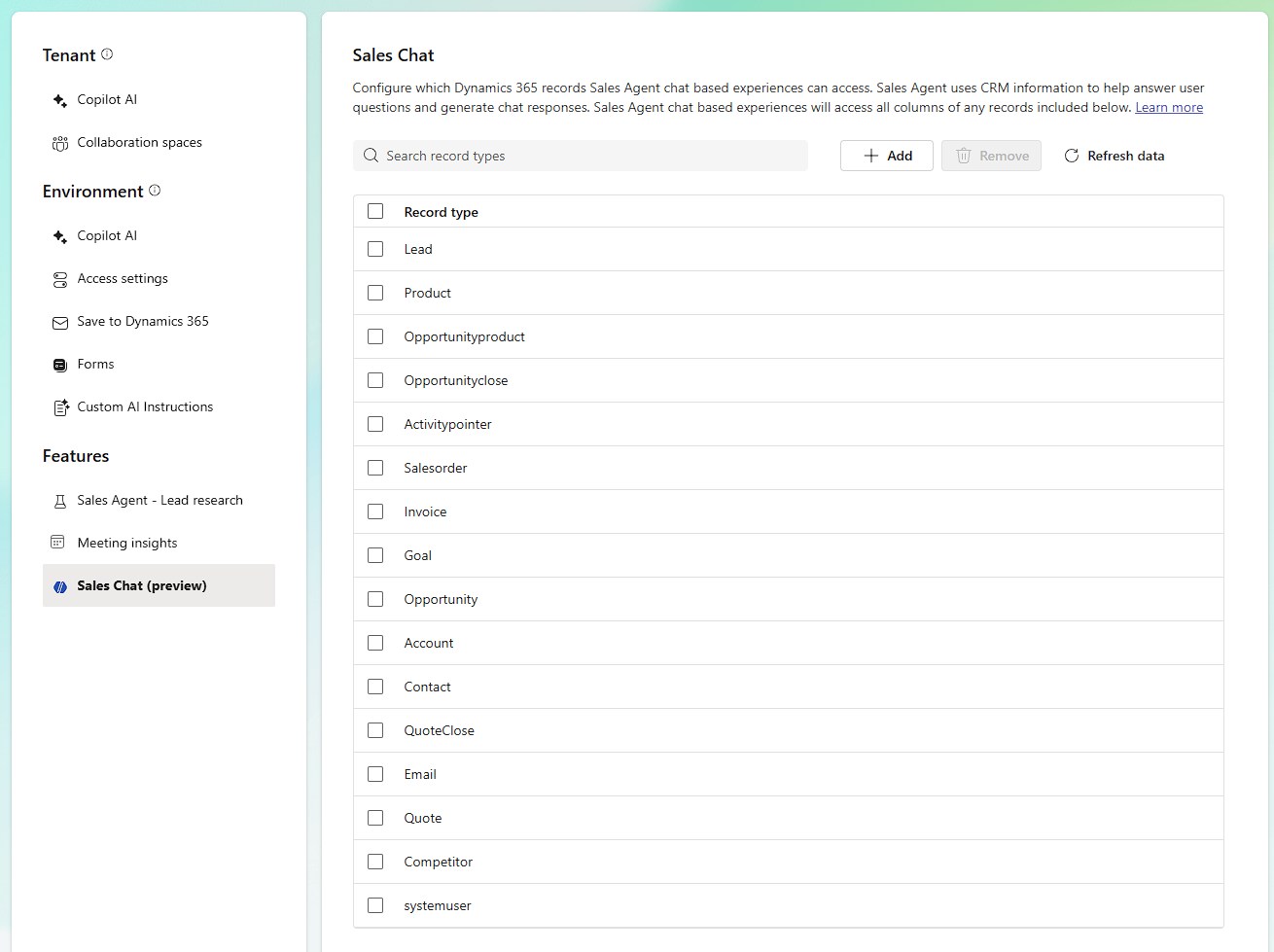
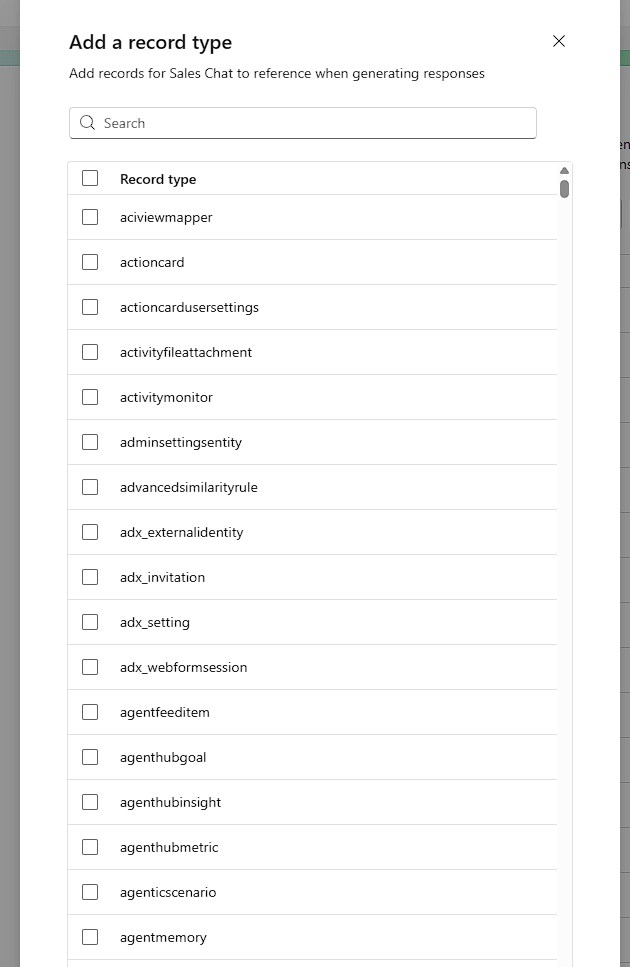
From here on out this article will be a collection of commented screenshots. I hope this helps you as much as it helps when I have to respond to client requests without having an environment and licensed Outlook at hand.
Tenant Settings
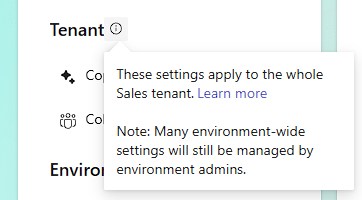
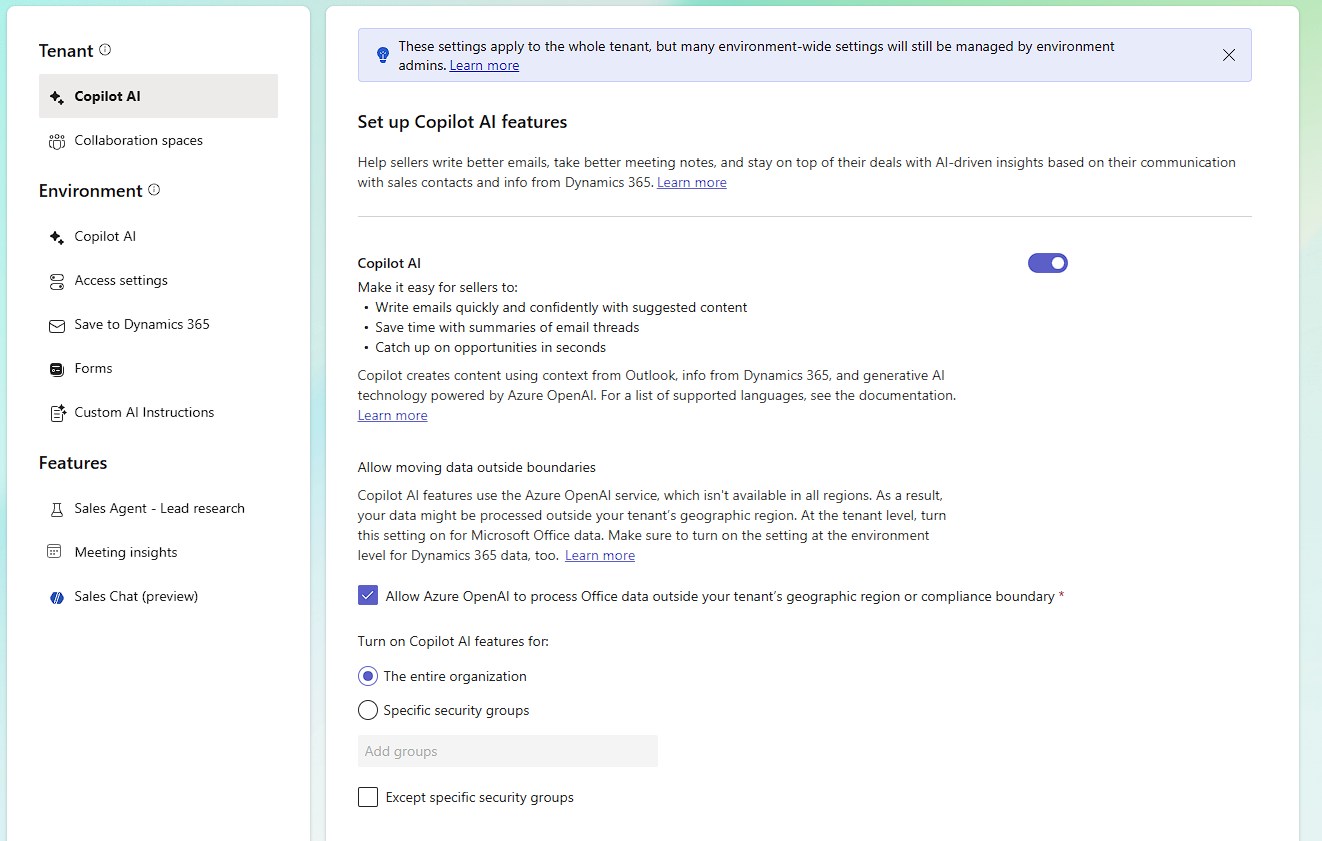
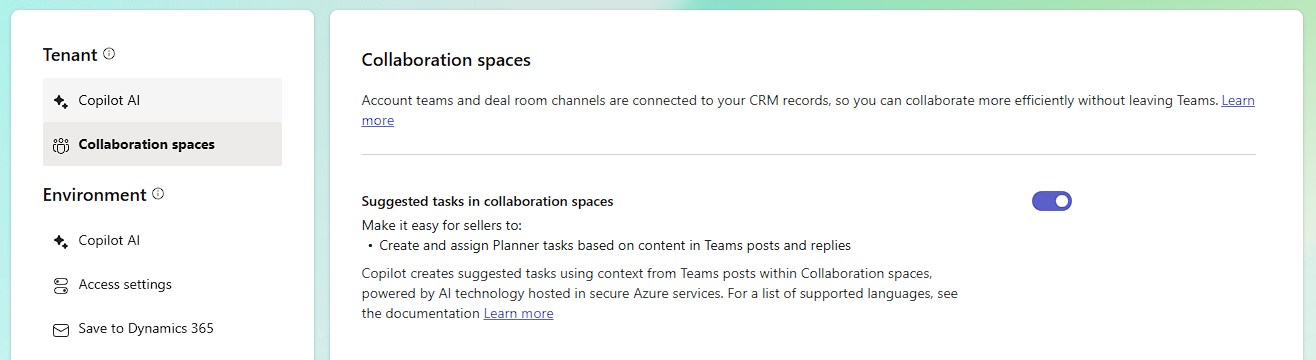
Environment Settings
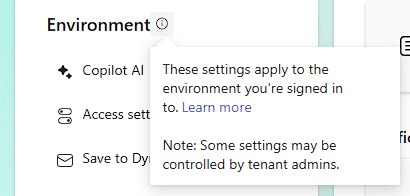
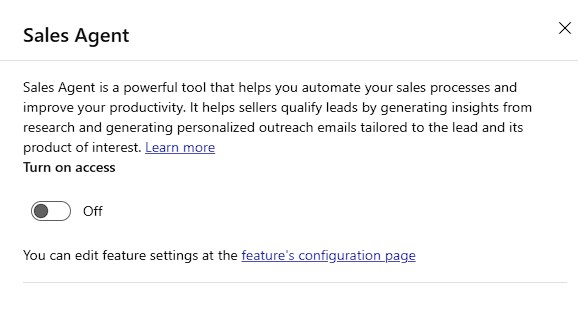
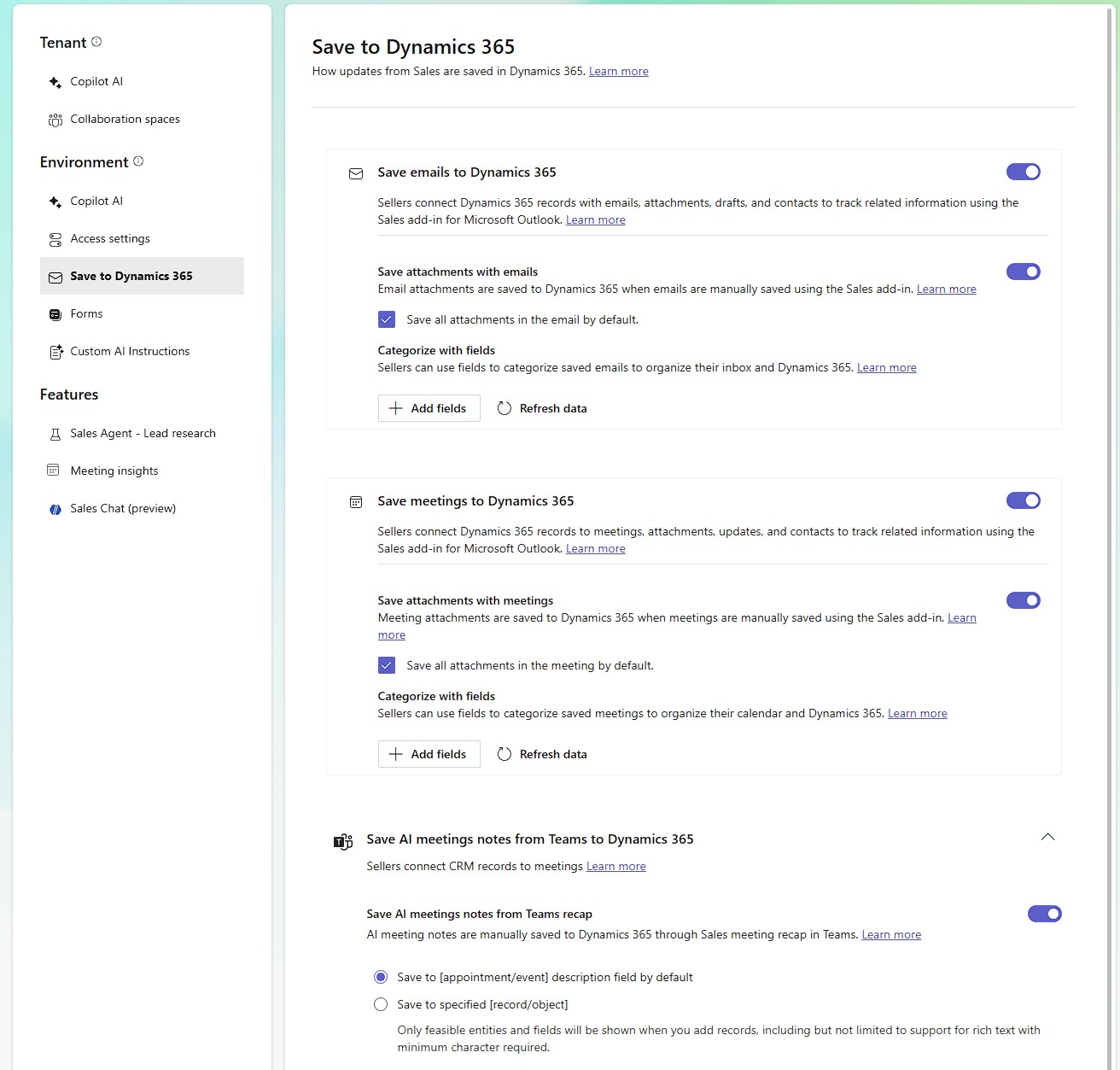
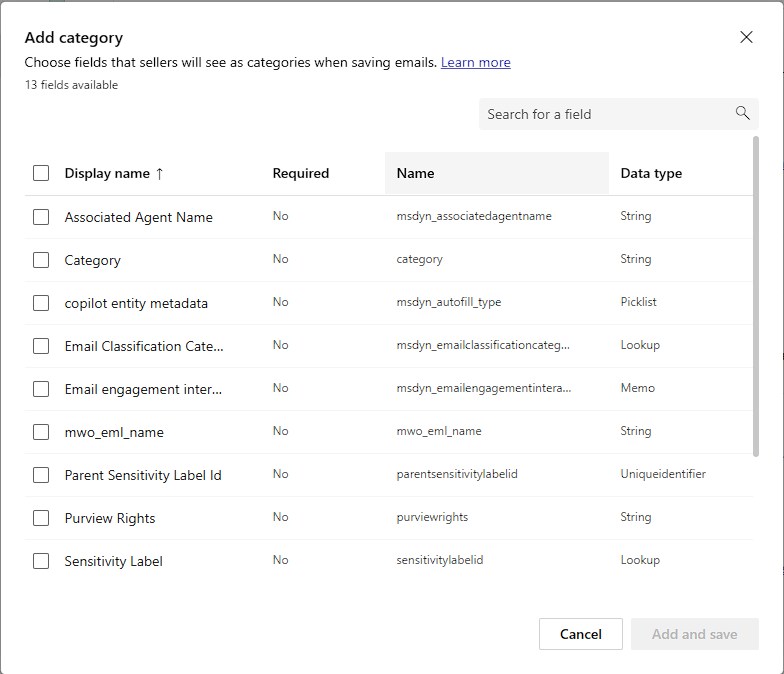
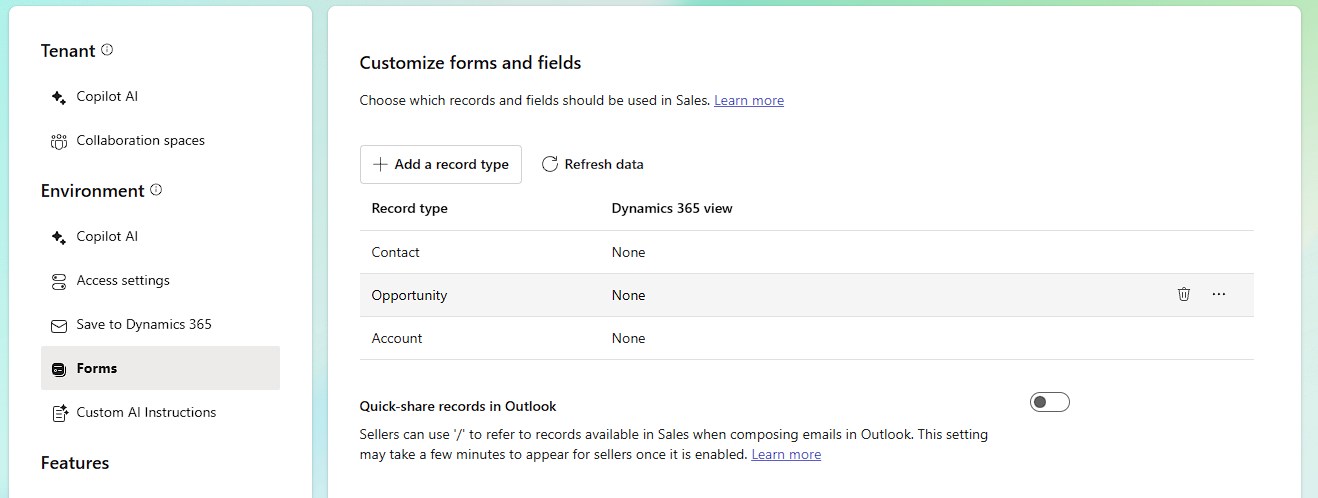


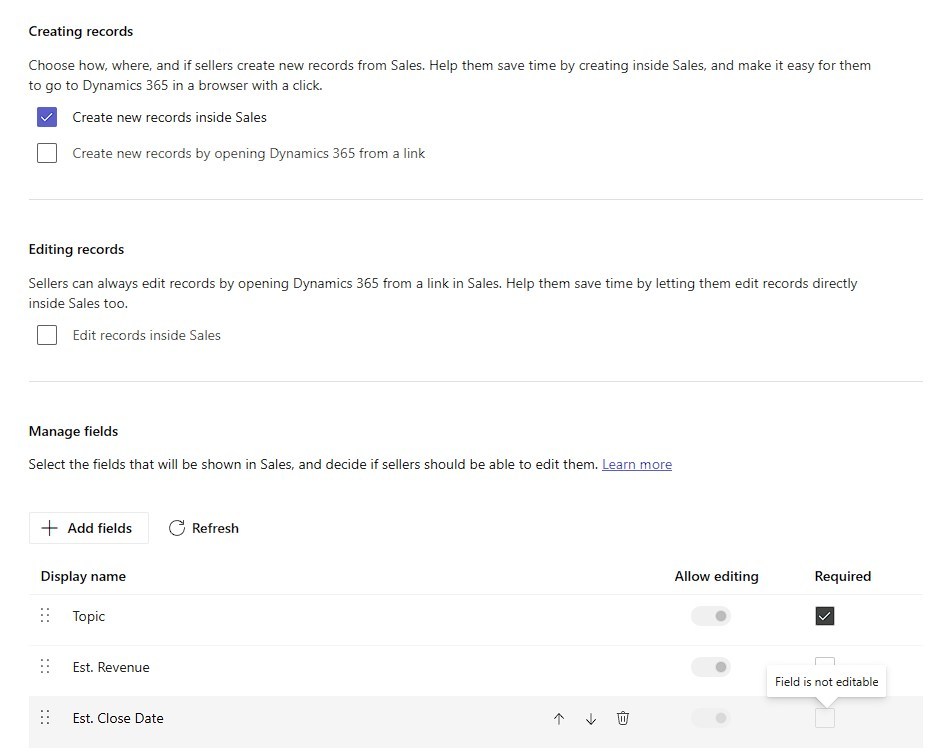
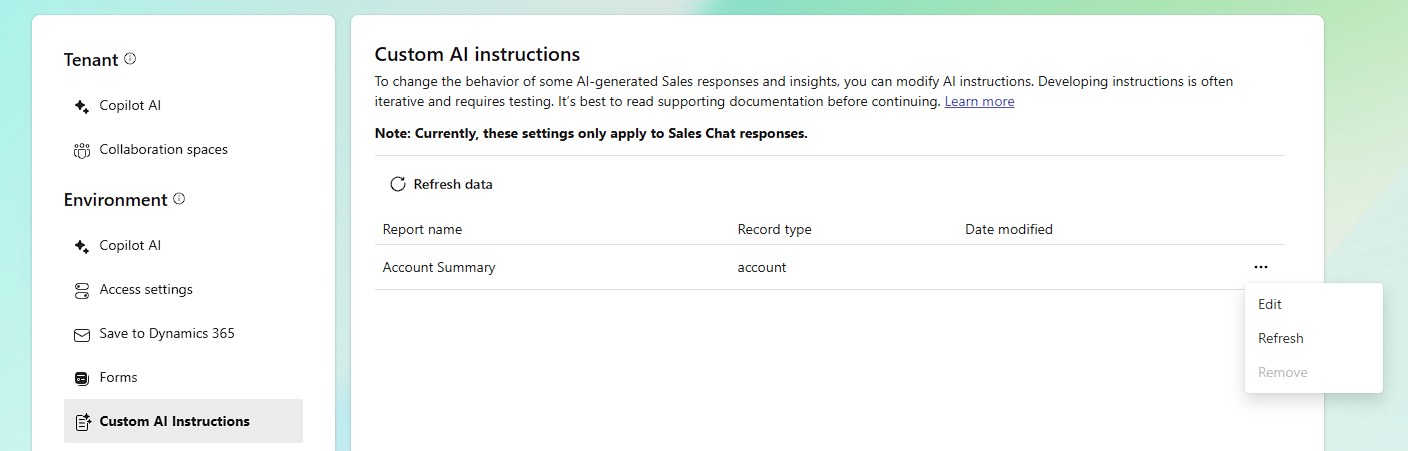
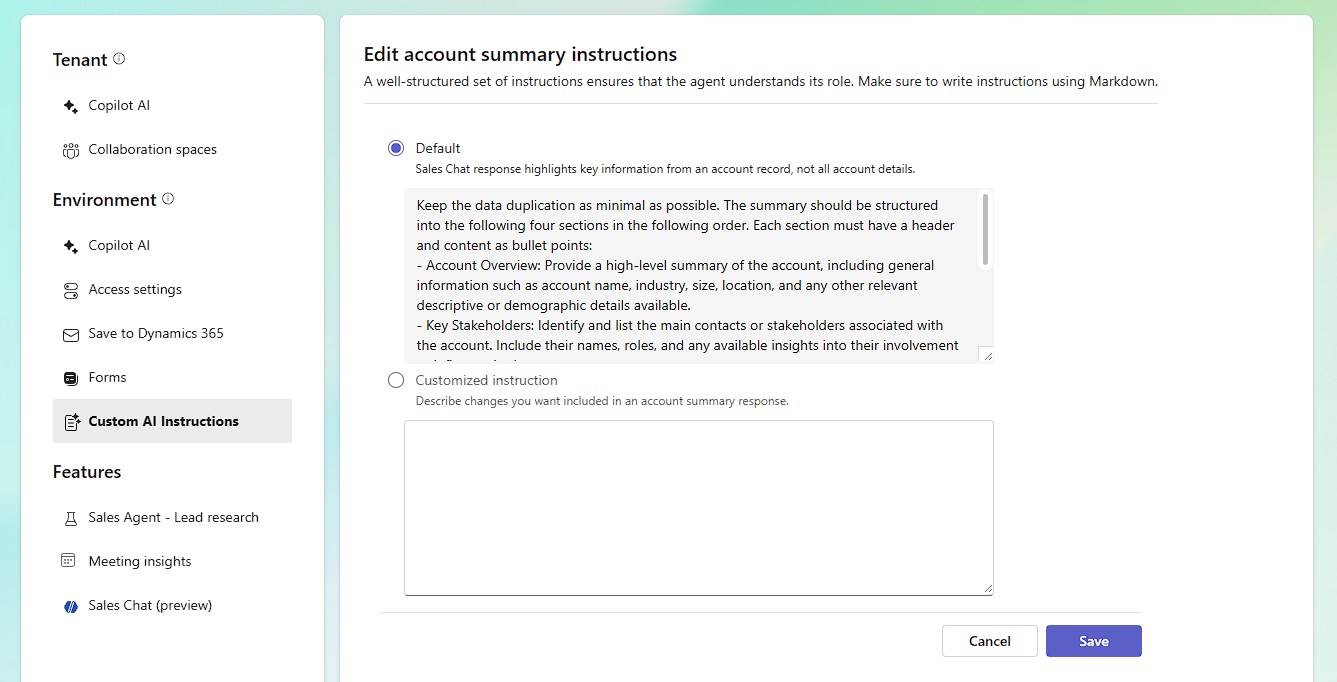
Features
Summary
Once you find the app, deployment is straight forward. Think about whom you want to give access and if all of these users should receive all AI features. You can limit access to many features with fine granularity in the Settings of the Copilot for Sales app. And by the way, I will keep calling it Copilot for Sales instead of “Sales”, because I think this is confusing in a global context. It might be fine within the Outlook AppSource, but in the Power Platform space or even googling stuff it’s way to generic.
This series will continue. For once we will take a general look at the users side of things, but we’ve also opened up room to investigate settings like required fields on create forms, Teams capabilities, daily digest, default views for contacts, enabling forms for custom tables, classifications, AI summary synchronization and the lead research agent. See you soon!